The last quarter of the year is the busiest stretch on most B2B and SaaS websites. Sales wants a pipeline push before the quarter closes. Buyers with budget left want to place it before December 31. An annual-plan or renewal offer runs to the end of the year, a year-in-review webinar needs registrations, support needs to say who answers over Christmas and New Year, and January brings a launch or a kick-off. Black Friday and Cyber Monday, on November 27 and November 30 this year, are one moment inside that season.
Each of those campaigns needs a place on the website, a start, an end, and a way to stay out of the way of people who have already seen it. This guide covers what to put on the site for Q4 and year-end campaigns, when to set them up, how to schedule the start and the end, how to keep returning visitors from seeing the same offer on every page, and how to take each one down cleanly. It uses HubSpot's own tools where they fit, and our modules where they go further: Announcement Bar Pro, Popup & Modal Pro and Hero Banner Pro.
What a Q4 campaign needs on a B2B site
Most seasonal advice is written for online stores. A SaaS or services site has a different list, and it is usually shorter:
- A quarter-end or year-end offer. A deal signed before the quarter closes, a home for budget that has to be spent this year, a discount on annual plans, a free month on upgrade, extra seats at the current price, or a lower rate for anyone who signs before December 31.
- Something for existing customers. They visit the site through late November too, and an upgrade offer speaks to them directly.
- Dates people need to know. Support hours over Christmas, the office closed between holidays, the last day to book an onboarding slot before January.
- An event with a deadline. A year-in-review webinar, a planning workshop, a product launch in the first week of January.
Each of those maps to one place on the page. A bar across the top carries the short message every visitor should see. A popup carries the offer with a form or a code. The hero of the pricing page or a campaign landing page carries the full pitch with a deadline. Using every one of them for the same message is how a site starts to feel like a sale rack, so give each its own job.
When to set it up
Build early, publish late. A rough calendar for 2026:
- Week of November 9. Decide the offer, the code and the end time, including the time zone. Build the landing page and the popup as drafts. Write the emails that will link to them.
- Week of November 16. Put everything on a test page and walk through it on a phone and a computer: the bar, the popup, the form, the code, the countdown. Check that an ended offer behaves the way you expect by setting a deadline a few minutes ahead and waiting it out.
- November. The quarter-end push for sales, and registrations for December events. If you run a Black Friday offer, early access for your email list from November 23. A link with a URL parameter can open the offer for subscribers before it is shown to anyone else (more on that below).
- November 27 to 30. Black Friday to the end of Cyber Monday, for sites that run a seasonal sale.
- December 1 to 31. The year-end message: annual-plan and renewal pricing until the 31st, year-end budget offers, the last webinar of the year, holiday support hours, registrations for the January event.
- January 2. Everything with a December deadline comes down, and the New Year launch or kick-off takes its place. The pricing page goes back to its usual hero, the bar is removed, and the codes stop working in your billing system.
The hour of the end matters as much as the day. "Ends Monday at midnight" means a different moment in San Francisco, New York and London, and the next section is about choosing which one you mean.
Scheduling the start and the end
There are two layers to schedule: the content on the page, and the countdown visitors see.
The content
A new landing page can be set to publish at a date and time from the editor's publishing options, so a campaign page built in advance goes live on its own. Changing a page that is already live is harder. Scheduling updates to a live page, and scheduling it to unpublish with a redirect, are part of the advanced publishing features in Content Hub Enterprise. On other tiers someone publishes the change by hand, so put a name and a time on the calendar for every switch: the bar on November 27, the year-end message on December 1, the cleanup on January 2.
HubSpot's CTA tool, under Marketing > CTAs, has both switches built in. For a banner, pop-up box or slide-in, the Options tab has Schedule for later for the start and Set unpublish date and time for the end. It comes with Marketing Hub or Content Hub from Starter upwards, and if your offer is a single banner or pop-up with a form, it is a good place to start.
The countdown
A countdown says the deadline out loud, so it has to be right. Decide whose midnight it is, and check how each tool reads the date:
- Popup & Modal Pro reads the deadline in your HubSpot portal's time zone, set under Settings > Account Defaults. Every visitor counts down to the same moment.
- Announcement Bar Pro and Hero Banner Pro read the date in the visitor's own time zone. Entered as
2026-11-30 23:59, the bar ends at 11:59 p.m. wherever each visitor is. For one shared moment, add the offset to the date:2026-11-30 23:59-08:00in the bar, or2026-11-30T23:59:00-08:00in the hero, ends the sale at midnight Pacific for everyone.
Whichever you pick, put the same time zone in the copy ("ends Monday, 11:59 p.m. PT") so the words and the clock agree.
The bar: Announcement Bar Pro
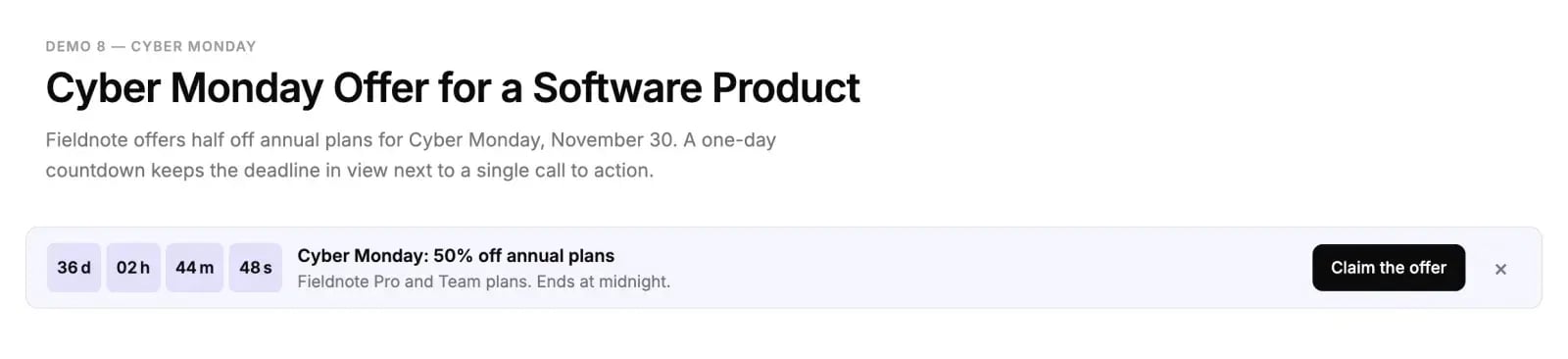
A bar across the top of every page is the least intrusive way to make sure everyone hears about a campaign. It covers no content, it does not ask for anything, and visitors who are not interested scroll past it. Put it in a global group or a template partial and it appears site-wide.
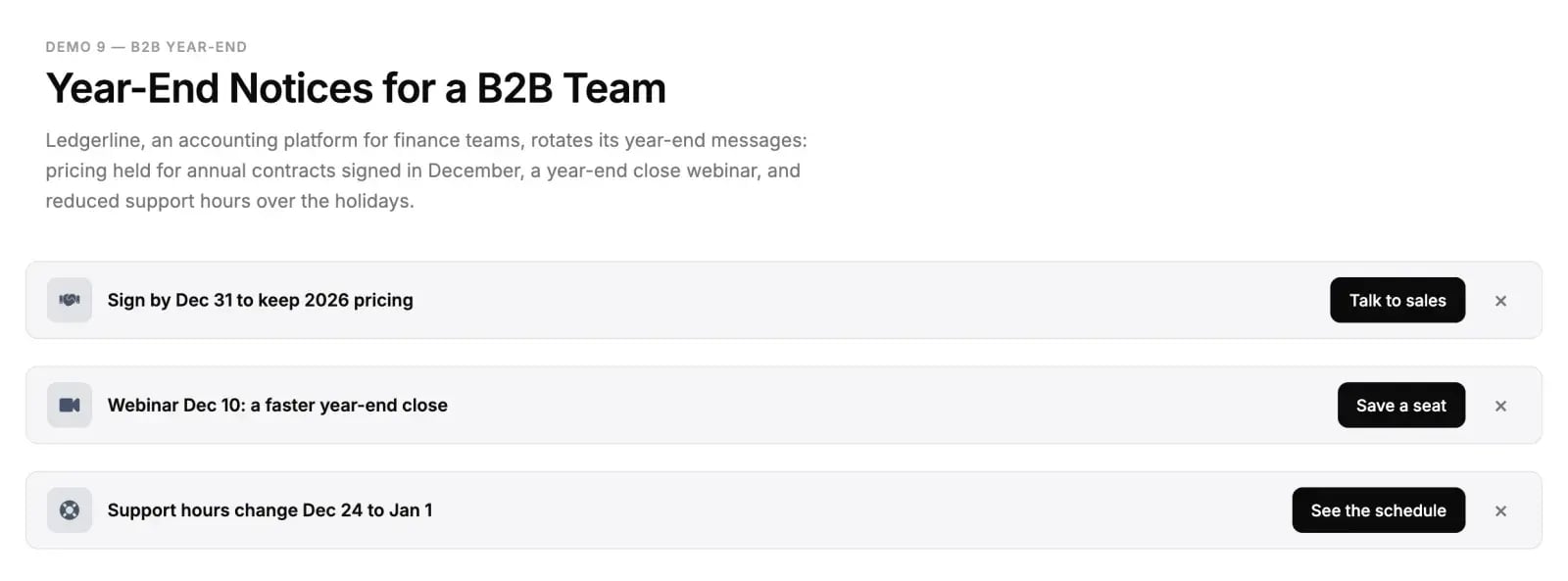
Announcement Bar Pro has two modes. In single mode it shows one message with an icon, a title, a second line, a link and a live countdown, and when the countdown reaches zero it is replaced by your own text, such as "This offer has ended". In rotate mode it cycles through several messages every few seconds, each with its own icon and link, which suits December: "Sign by Dec 31 to keep 2026 pricing", then "Webinar Dec 10: a faster year-end close", then "Support hours change Dec 24 to Jan 1". The countdown belongs to single mode, so use single mode while one deadline leads, such as Cyber Monday or December 31, and rotate when several messages share December.
The bar can sit at the top or the bottom, stay put, stick on scroll or stay fixed in view, and pick up a color preset or your own colors. On phones it has its own font size and can stack its content.
Dismiss memory
The close button is what keeps a bar from becoming a nuisance. With Remember Dismissal on, a visitor who closes it does not see it again in that browser for the number of days you set, seven by default. Set it to cover the length of the campaign so a closed bar stays closed.
The memory belongs to that module on that page. When you replace the Black Friday bar with a new one for the December message, visitors who closed the first one see the second, which is usually what you want: it is a different message. If you only edit the text of the same bar, the dismissal carries over.
We cover the rest of the module, including the styling and the countdown labels, in the Announcement Bar Pro guide.
The offer: Popup & Modal Pro
The popup is where the offer gets specific: the code, the form, the deadline. It is also the piece most likely to annoy people, so most of the setup is about restraint.
Popup & Modal Pro is a single module per popup, dropped into a page or a global group, with its content, triggers and rules as fields in the page editor. For a Q4 campaign, the parts that matter are these.
The coupon and the Copy button
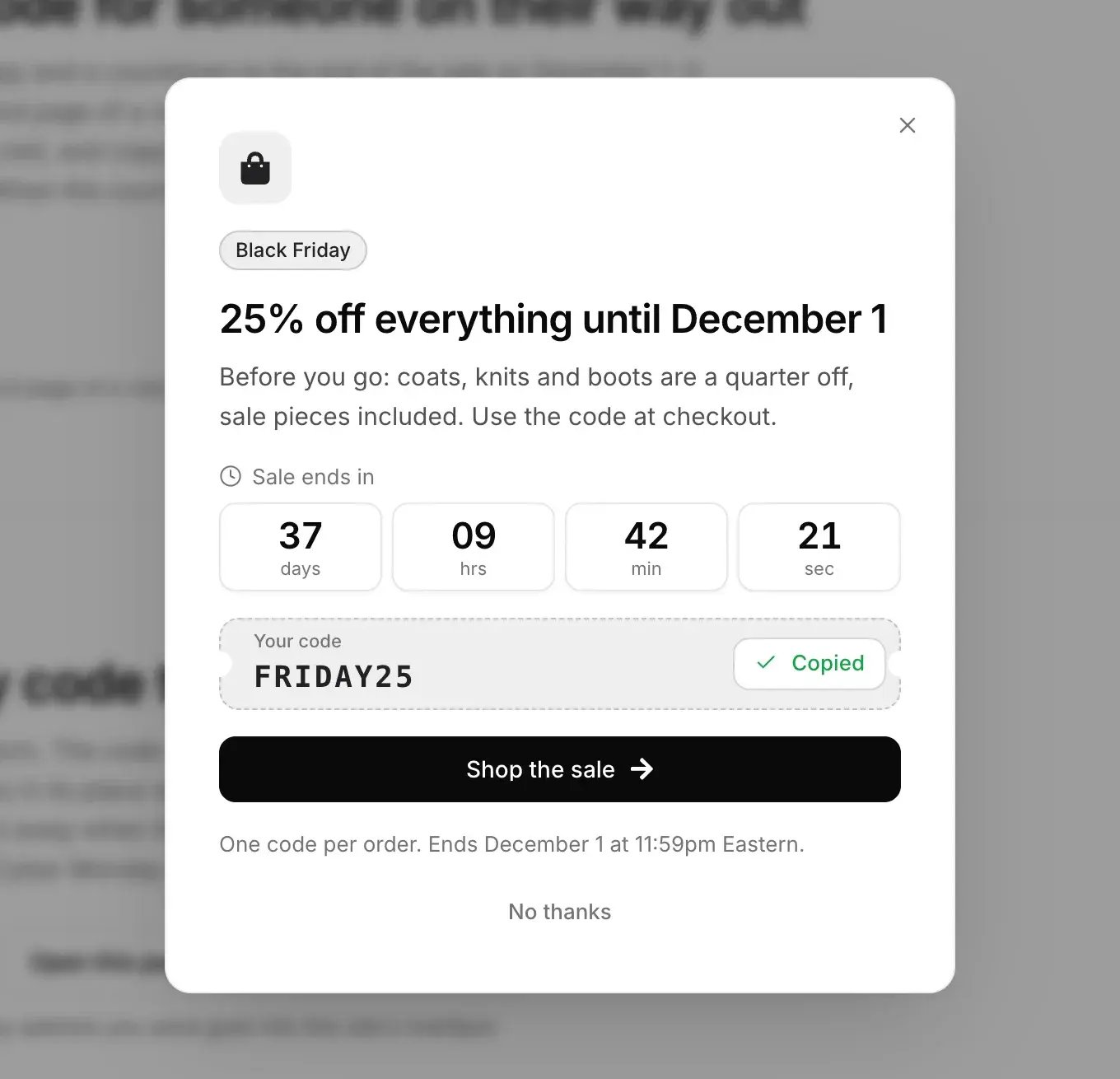
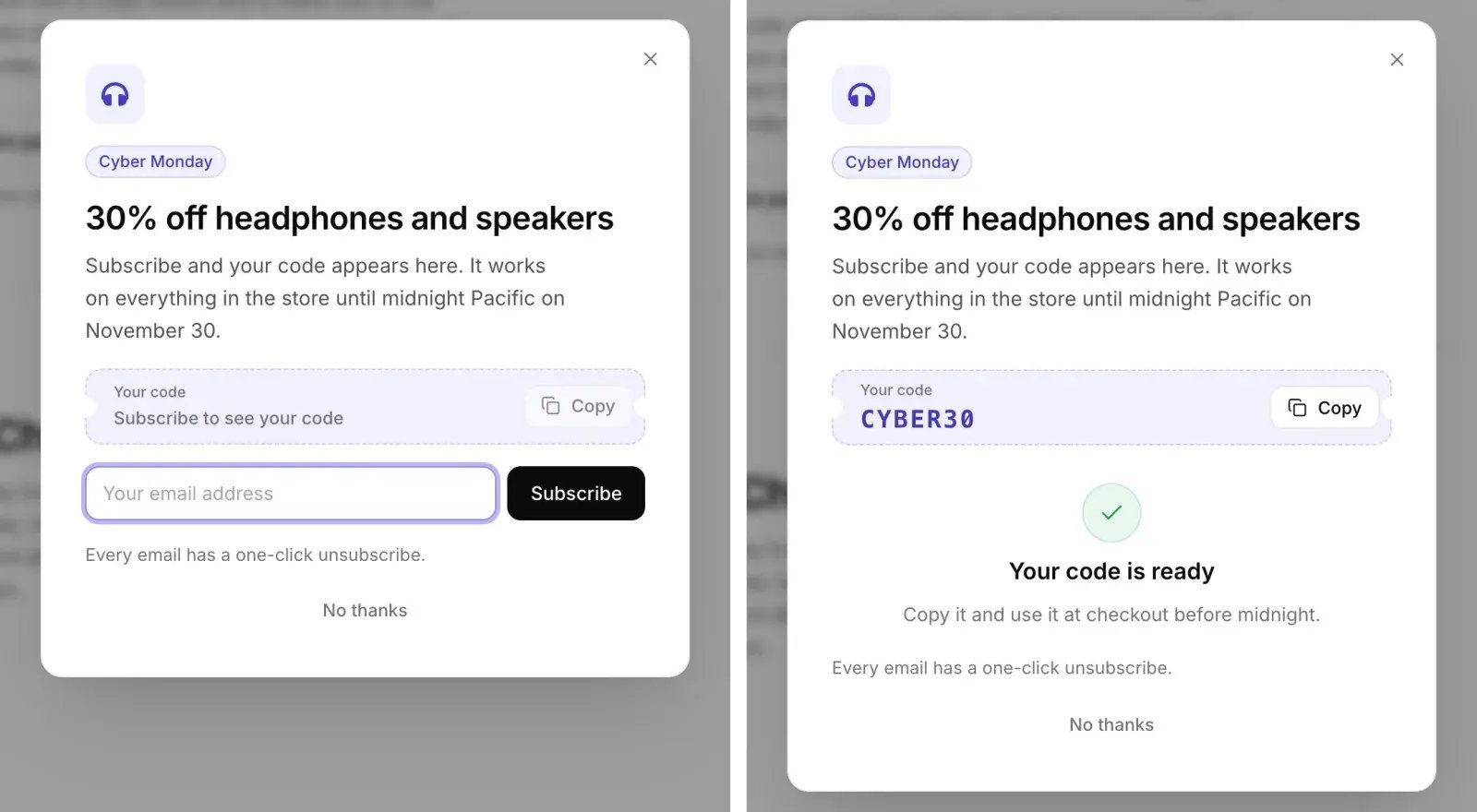
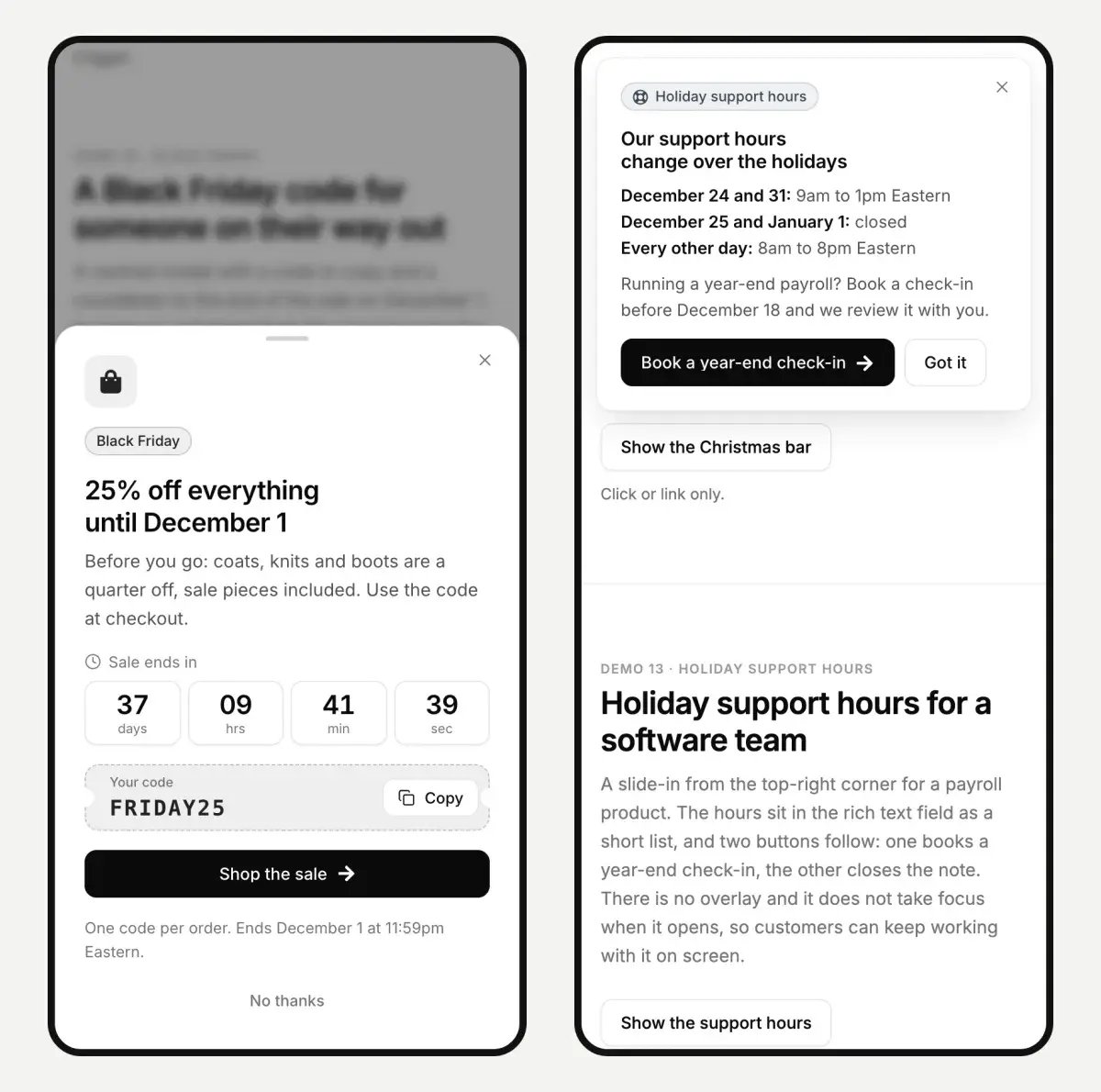
Turn on Show a coupon code, enter the code and a label above it, and the popup shows the code with a Copy button. Copying it can count as a conversion, which stops the popup from showing again to that visitor. If the code is the price of an email address, turn on Reveal the code after the form is sent: until the form is submitted the code stays hidden behind a line such as "Subscribe to see your code", and after the submit it appears with its Copy button.
For a SaaS offer that means a code for the annual plan in exchange for a work email, a code for the upgrade or renewal that existing customers paste into the billing page, or no code at all and a webinar registration form in its place.
The countdown and what happens at zero
The countdown runs to a date and time, or to a number of hours after each visitor first sees the popup. For a campaign with a real deadline, use the date. Then choose what happens when it reaches zero: hide the countdown, show your "offer ended" text, or stop showing the popup. For a dated offer, stop showing the popup is the clean choice. The popup stops opening on its own, its trigger button disappears, and a link to it opens a popup that says the offer has ended. Nobody is offered a code that no longer works.
When it opens
Pick one or two triggers. For a Q4 offer, these work well:
- Exit intent on a computer, when the pointer leaves through the top of the window, after a few seconds on the page. On phones it waits for a fast scroll back up after a quarter of the page, or you can keep it to computers. We go through the details in how to add an exit intent popup in HubSpot.
- Scroll to an element, so it opens when the visitor reaches your pricing table.
- A link or a button. Any link to
#your-popup-idopens it, in body text, a menu or another module's button. A click always opens it, whatever the frequency rules say. - A URL parameter. A link ending in
?popup=year-endlands the visitor with the offer already open. Put it in a customer email, a sales follow-up or an early-access send, and those readers see the offer before anyone else, with no separate landing page.
Frequency caps
This is the setting that decides whether returning visitors put up with the campaign. The automatic triggers follow these rules; clicks and links ignore them, because the visitor asked.
- Show automatically: on every page view, once per visit, once every so many days, or once ever. For a short sale, once per visit is the ceiling; for an offer that runs for weeks, once every few days is kinder.
- Stop after this many showings: a hard cap per visitor. Two or three showings cover a short sale. A month-long offer needs a cap too, so it does not follow someone through December.
- Stop after a conversion: a form sent, a button marked as a conversion, or the code copied. Anyone who took the offer never sees it again.
- Visitors: everyone, first visits only, or returning visitors only. A new-customer discount can skip returning visitors, who are more likely to be customers already.
- Don't show this again: an optional link under the content that stops automatic showings for that visitor for good.
- Wait until the cookie banner is answered, on by default, so the offer never stacks on top of HubSpot's consent banner.
Show counts are stored under the popup's ID. Give the Black Friday popup and the year-end popup different IDs and each one starts from zero; reuse the ID and visitors who hit the cap in November stay capped in December.
If you run more than one popup, a welcome offer and a holiday offer for example, each gets a priority, and only one is ever on screen. The higher number goes first.
On phones a centered popup can become a bottom sheet the visitor swipes away, while a slide-in keeps its place at the edge of the screen.
The campaign page: Hero Banner Pro
The bar and the popup point somewhere. That somewhere is usually the pricing page or a landing page for the offer, and its hero is the first thing a visitor reads after the click.
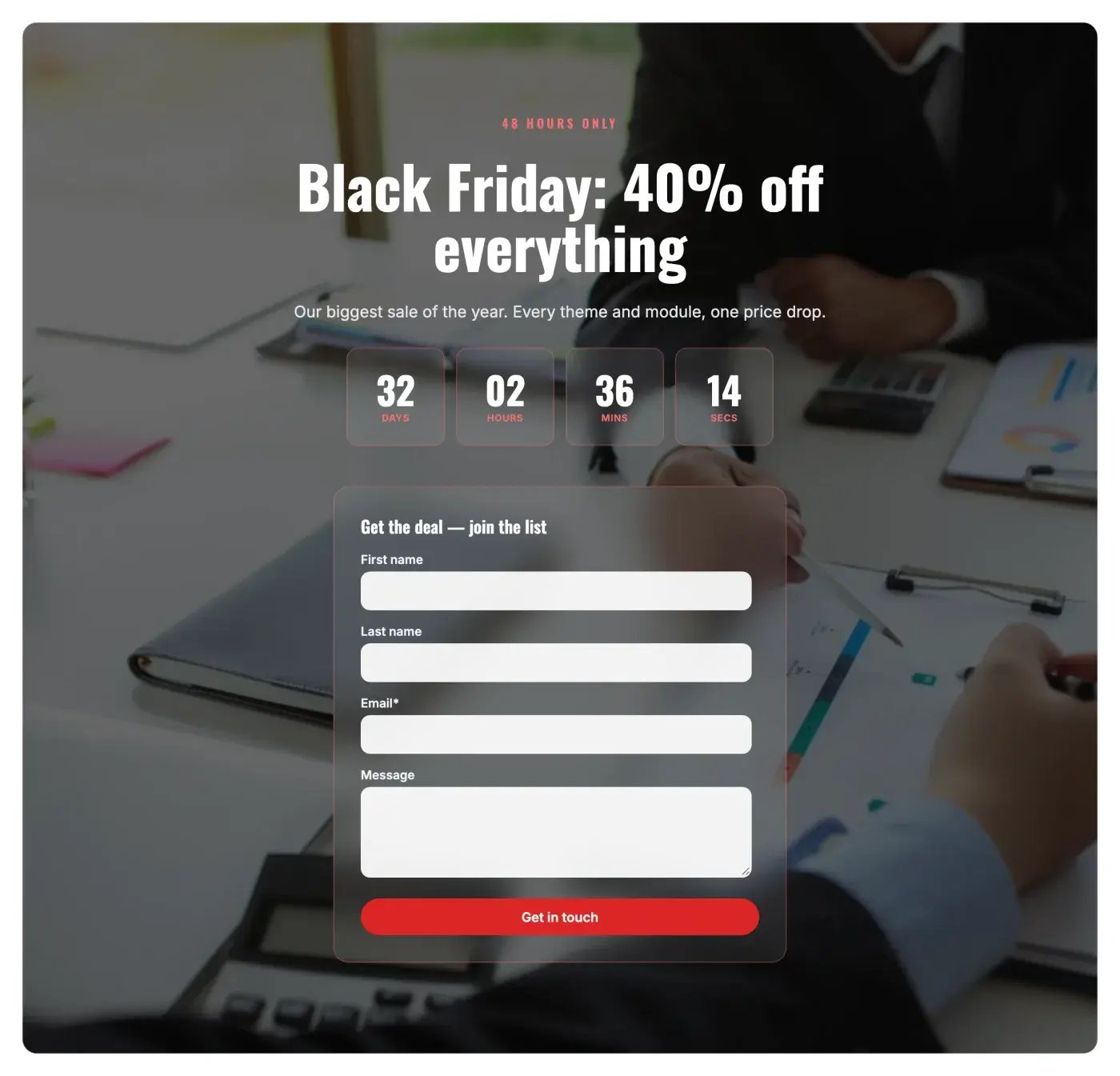
Hero Banner Pro has a countdown built into the hero: days, hours, minutes and seconds under the heading, with your own labels and a message that replaces it at zero, such as "This offer has ended". Next to it go an eyebrow line, the heading, a subheading, two buttons and, if you want the lead on the same screen, a HubSpot form below the text or beside it. The background can be a color, a gradient, an image or a looping video with an overlay to keep the text readable.
In carousel mode each slide is its own hero with its own countdown, which lets one hero hold the Cyber Monday deadline on the first slide and the December 31 annual-plan deadline on the second. The demo page has a Black Friday hero with a red accent, a live countdown and a sign-up form under the heading.
Two cautions. A hero is page content, so it changes when the page is published, and on most tiers that means someone republishes it after each campaign. And a large background video is the heaviest thing on a page; if the campaign page needs to load fast on a phone, an image is the safer background. We cover the page-speed side in how to fix Core Web Vitals on HubSpot CMS.
Where HubSpot's CTA tool fits
For a site on Marketing Hub or Content Hub Starter or above, the CTA tool covers a lot of this. It makes banners, pop-up boxes and slide-ins, holds a form or a meetings link and a countdown timer, schedules its own start and end, and decides how often it shows again: after a set time, every time, or never. It also reaches pages outside HubSpot through the tracking code and targets HubSpot lists. If that covers your campaign, use it.
The modules go further in a few specific places:
- Plans. They run on any HubSpot plan with CMS pages, including sites without a Marketing Hub or Content Hub subscription.
- The code. A coupon code with a Copy button, optionally hidden until the form is sent.
- The page itself. A countdown inside the hero of a landing page, where it reads as part of the page.
- Opening from a link. A plain link in body text, or a URL parameter in an email, opens the offer.
- The look. Colors, fonts, spacing and animation are fields, and the accent and fonts come from your theme.
- Several at once. Popups queue by priority, so a holiday offer and a standing newsletter popup can share a page.
And the limits: the modules run on HubSpot CMS pages only. They do not unpublish themselves on a date; the popup stops showing at its deadline, while the bar and the hero switch to your "ended" text and stay on the page until you remove them.
Ending each campaign cleanly
An ended sale left on the site tells visitors nobody is watching it. The morning after each deadline, and once more in the first week of January:
- Remove the bar from the global group, or replace it with the next message.
- Turn off or delete the popup. It has already stopped opening by itself; removing it also stops links to it from showing the "ended" message.
- Put the pricing page hero back. If you cloned the page for the campaign, publish the original again. If you edited the hero in place, keep a note of its old text before the campaign starts.
- Redirect the campaign landing page to the pricing page under Settings > Content > Domains & URLs > URL redirects, so links in old emails and posts still land somewhere useful.
- Expire the codes in your billing system, so a code shared after the deadline does not keep working.
- Search the site for the campaign's names and dates, "Black Friday", "December 31", "holiday hours", before you call it done. Footer links, FAQ answers and blog sidebars are where old dates hide.
Try them on the demo pages
Each module runs live on its demo page, holiday examples included: Popup & Modal Pro, Announcement Bar Pro and Hero Banner Pro. Each is on the HubSpot Marketplace: Popup & Modal Pro, Announcement Bar Pro and Hero Banner Pro. For the page the campaign points to, HubSpot landing pages that match your funnel covers structure, and the full catalog is on HubSpot modules.
Every theme and module we sell comes with email support, including help setting it up for a campaign — write to hello@studionope.com.